Setting up a WhatsApp chatbot used to mean hiring a developer, navigating complex APIs, and spending weeks in configuration. In 2026, that's no longer the case.
With a no-code platform like OwnChat, you can build and launch a fully functional WhatsApp chatbot for your business in a single afternoon — no technical background required.
This step-by-step guide walks you through the complete process: from getting WhatsApp Business API access to launching your first automated conversation flow.
What Is a WhatsApp Chatbot?
A WhatsApp chatbot is an automated conversation system that runs on your WhatsApp Business number. When a customer messages you, the chatbot responds automatically — answering FAQs, collecting information, qualifying leads, booking appointments, or processing orders — without any human intervention.
The key difference from regular auto-replies is intelligence and flow. A chatbot doesn't just send a single pre-set reply. It conducts a multi-step conversation, responding differently based on what the customer says, guiding them through a journey you've designed in advance.
What Can a WhatsApp Chatbot Do?
- Answer frequently asked questions around the clock
- Collect customer name, phone, email, and enquiry details automatically
- Qualify leads before passing them to your sales team
- Take and confirm orders
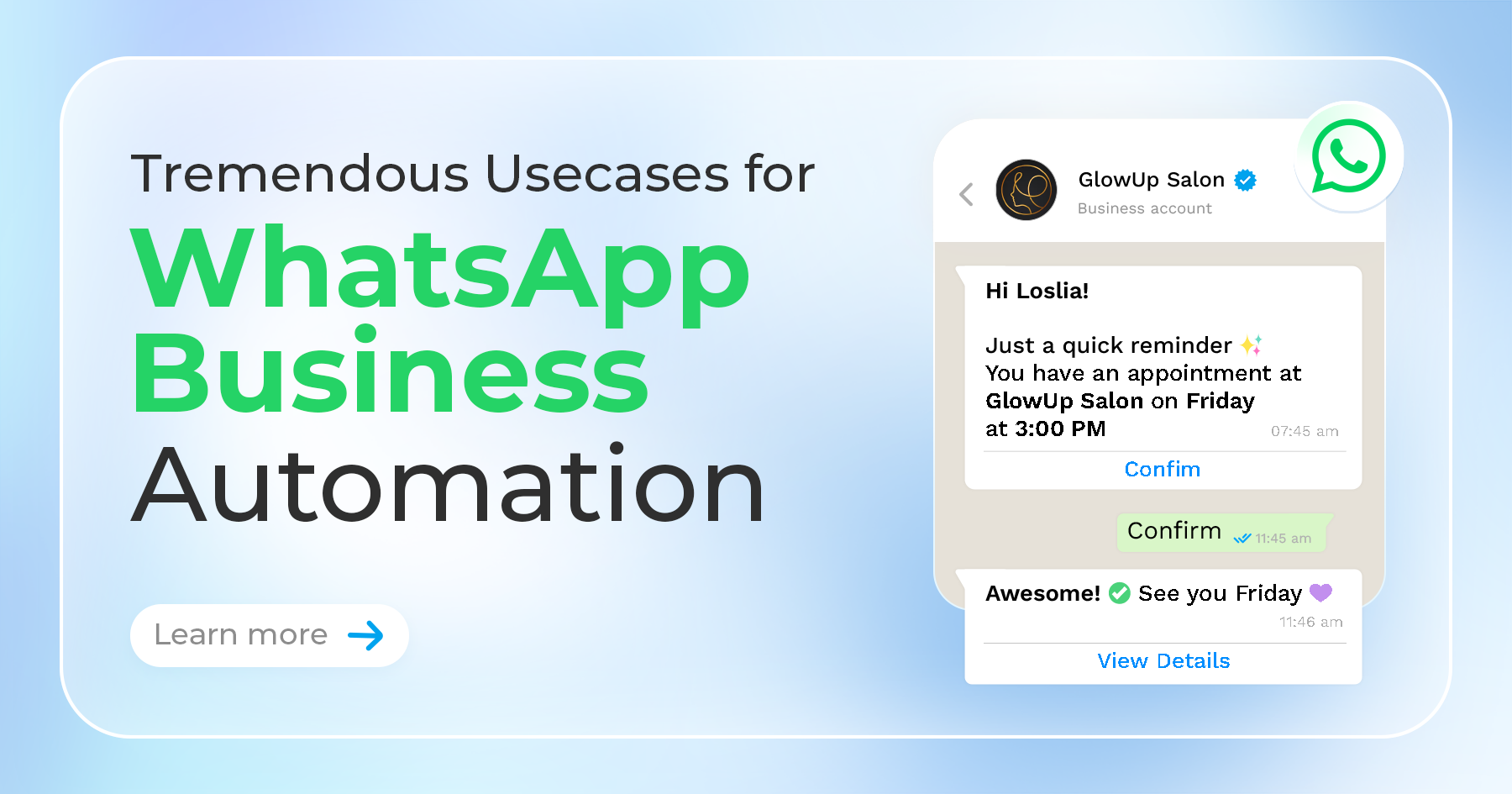
- Send appointment booking confirmations and reminders
- Share product catalogues or pricing information
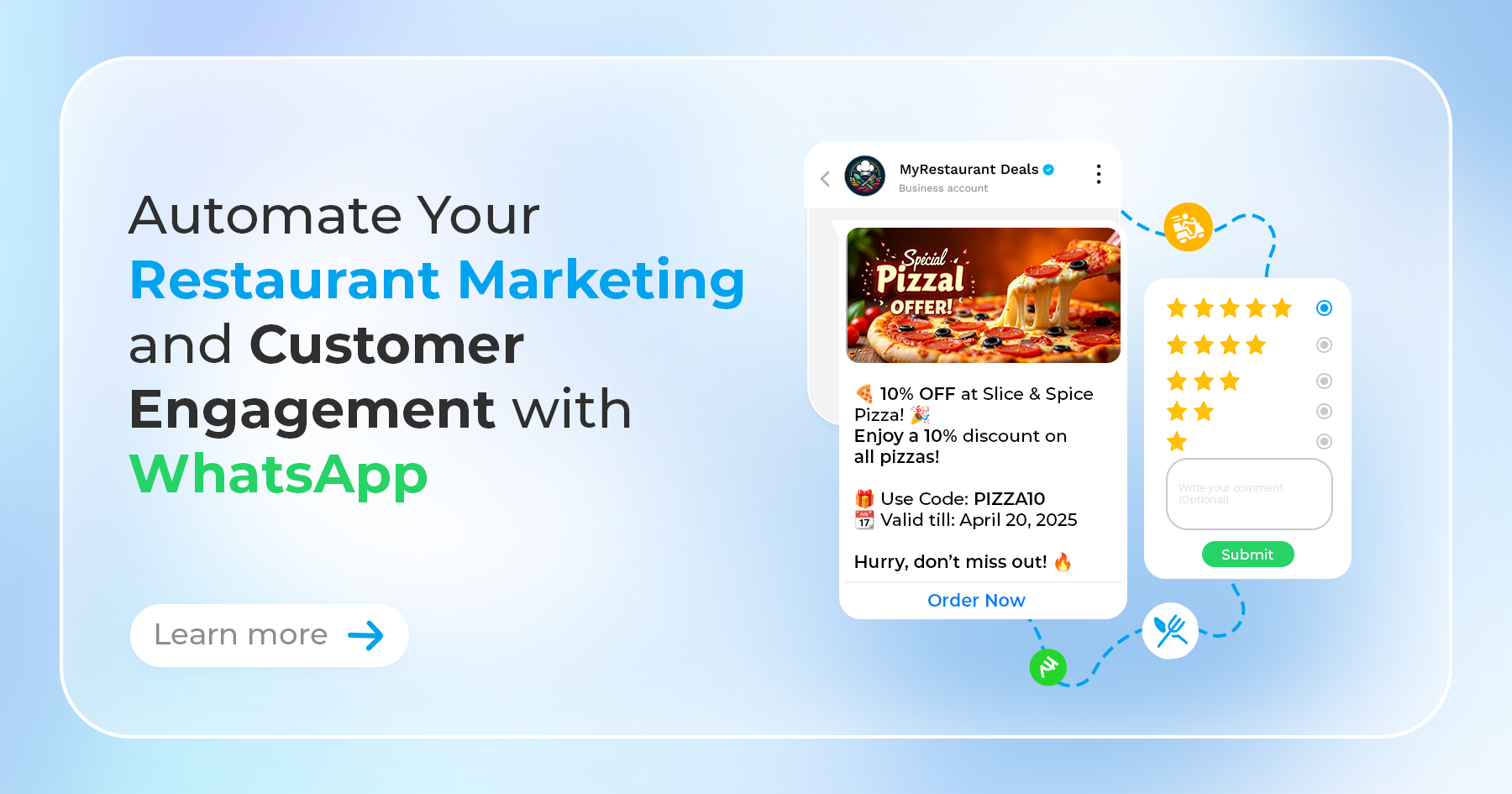
- Collect feedback after a purchase or service visit
- Trigger broadcast messages based on customer actions
Before You Start: What You Need
To set up a WhatsApp chatbot, you need:
- A WhatsApp Business API account — the standard WhatsApp Business app doesn't support chatbots at scale. You'll need API access through an official provider like OwnChat.
- A dedicated phone number — this number will be used exclusively for WhatsApp Business. It can be a new number or an existing one (as long as it's removed from regular WhatsApp first).
- An OwnChat account — OwnChat provides both the API access and the chatbot builder you'll use to design your flows. Start your free trial →
- A clear idea of what your chatbot should do — before you build, know the top 5–10 questions your customers ask most, and the most common actions they need to take.
Why Businesses Are Investing in WhatsApp Chatbots in 2026
- Rising support volume
- Faster response expectations
- Lead qualification challenges
- 24/7 availability
Step 1: Sign Up for OwnChat and Get WhatsApp API Access
Go to ownchat.app and start your free trial. During onboarding, you'll connect your WhatsApp Business number to the OwnChat platform.
OwnChat is an official Meta Business Partner, so it handles the WhatsApp Business API application and setup for you. You don't need to interact with Meta directly.
What Happens During Setup
- You provide your phone number and business details
- OwnChat submits your API application to Meta
- Approval typically happens within 24–72 hours
- Once approved, your number is live on the OwnChat dashboard
If you're new to the WhatsApp Business API, read our full guide: What is the WhatsApp Business API? →
Step 2: Plan Your Chatbot Flow
Before opening the Flow Builder, spend 20 minutes planning what your chatbot will do. This prep work is the most important step — a well-planned chatbot is a good chatbot.
Ask yourself:
What Are the Top Questions Customers Ask on WhatsApp?
Write a list. For most businesses, 5–8 questions account for 80% of inbound enquiries. Your chatbot will handle all of them.
What Action Do You Want Customers to Take?
Book an appointment? Place an order? Submit a lead form? Speak to an agent? Your chatbot should guide customers toward one of these outcomes.
When Should the Chatbot Hand Off to a Human Agent?
Define the trigger — for example: any query about pricing above a threshold, any complaint, any unanswered question. Everything else stays automated.
Sample Flow Structure for a Restaurant
Customer messages "Hi" or any greeting
→ Bot: "Welcome to [Restaurant Name]! How can we help you today?"
[1] Book a table
[2] View menu
[3] Check delivery hours
[4] Talk to our team
Customer selects [1]
→ Bot: "Great! How many guests?" → Collects date/time → Confirms booking
Customer selects [2]
→ Bot: Sends menu PDF or catalogue link
Customer selects [4]
→ Bot: "Connecting you to our team now." → Assigns to agent
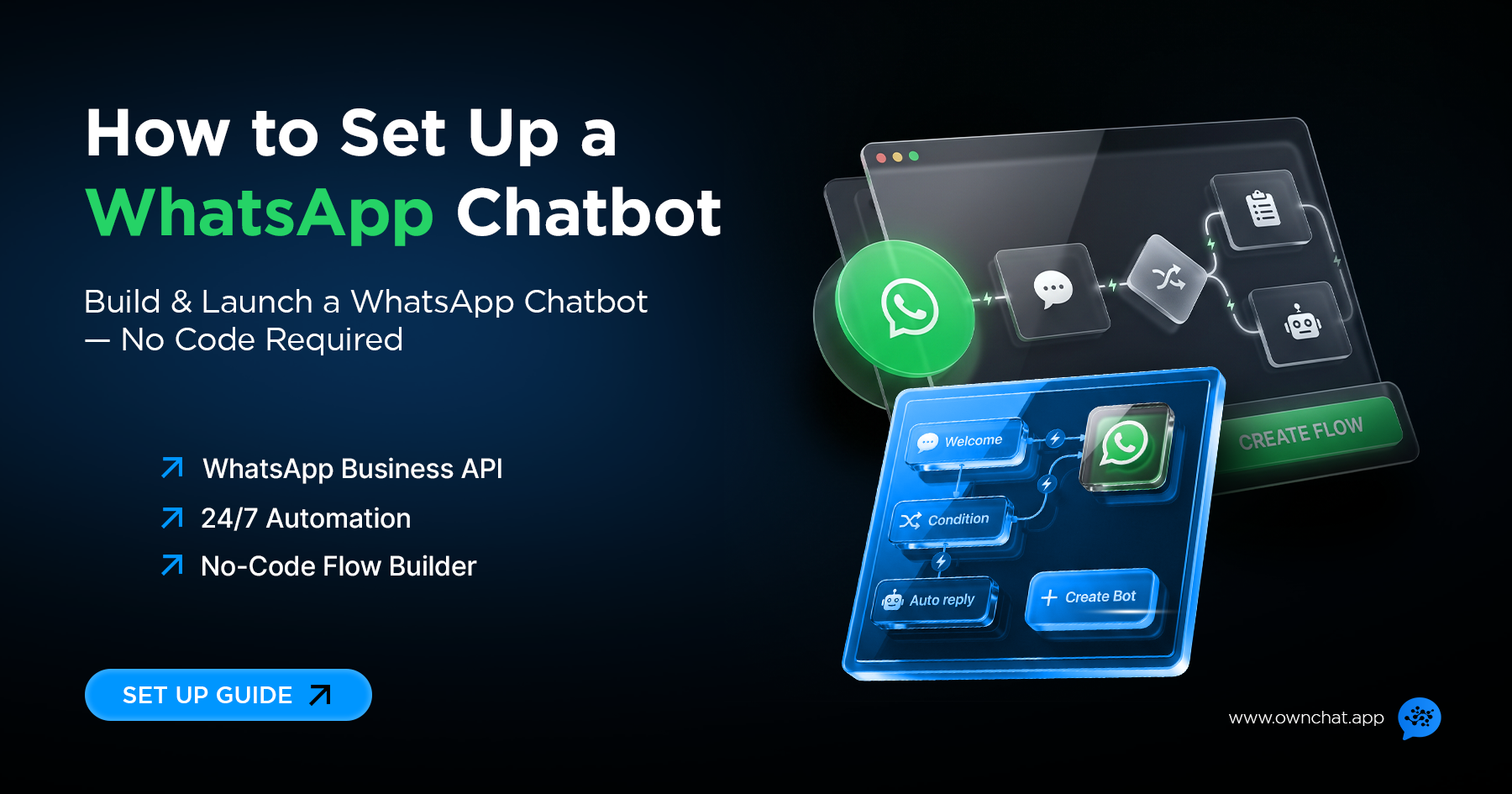
Step 3: Build Your Flow in OwnChat's Flow Builder
Log in to your OwnChat dashboard and navigate to Flow Builder.
Creating a New Flow
Click "Create New Flow" and give it a name (e.g., "Main Menu — Restaurant").
Adding Your Welcome Message
The first node in every flow is the trigger message — what the bot says when a customer first messages you (or when a specific keyword is detected).
Click "Add Message" and write your welcome text. Keep it short, warm, and action-oriented. Always include a numbered menu of options — customers are much more likely to respond to a structured menu than an open-ended question.
Example
"Hi! Welcome to Annapoorna Restaurant 🍛 How can I help you today?
Reply with:
1️⃣ Book a table
2️⃣ View our menu
3️⃣ Check today's specials
4️⃣ Delivery enquiry
5️⃣ Speak to our team"
Adding Response Branches
After your welcome message, add a Condition Node for each numbered option. When a customer replies "1", "book", or "table", the chatbot follows the booking branch. When they reply "2" or "menu", they get the menu.
OwnChat's Flow Builder uses drag-and-drop branching — click the "+" icon on any message node to add a response branch.
Collecting Customer Information
To collect a name, phone number, or other details, use an Input Node. The chatbot asks the question, waits for the customer's reply, and saves it as a variable (e.g., {{customer_name}}).
You can then use these variables in later messages:
"Thanks, {{customer_name}}! Your table for {{guest_count}} is confirmed for {{booking_date}} at 7pm. See you soon!"
Routing to a Human Agent
At any point in a flow, you can add a Transfer to Agent node. This moves the conversation from the bot to your team inbox, where a real person takes over. The agent sees the full conversation context.
Set up transfer triggers for:
- Complaints or negative keywords
- Requests the bot can't handle
- High-value enquiries (e.g., large orders, premium products)
- Any time the customer types "agent" or "human"
Step 4: Set Up Keyword Triggers
Your main chatbot flow starts when a customer messages you. But you can also create flows that trigger when a customer uses a specific keyword.
Common Keyword Triggers to Set Up
| Keyword | Trigger Action |
| "Hi", "Hello", "Hey" | Send welcome message with menu |
| "Price", "Pricing", "Cost" | Send pricing information |
| "Menu", "Food" | Send menu or catalogue |
| "Book", "Appointment", "Reserve" | Start booking flow |
| "Order", "Buy" | Start order flow |
| "Help", "Support", "Agent" | Transfer to human agent |
| "Hours", "Timing", "Open" | Send operating hours |
| "Location", "Address", "Where" | Send location pin |
To add keyword triggers in OwnChat: go to Settings → Keywords and add your trigger words alongside the flow they should activate.
Step 5: Create and Submit Message Templates
If you want your chatbot to send messages to customers proactively — such as appointment reminders, order updates, or broadcast campaigns — you'll need pre-approved message templates.
Templates are reviewed and approved by Meta, typically within a few hours.
In OwnChat: go to Templates → Create Template, choose the category (Marketing, Utility, or Authentication), write your message, and submit it.
Example Utility Template (Order Confirmation)
"Hi {{1}}, your order #{{2}} from {{3}} has been confirmed! Expected delivery: {{4}}. Track your order: {{5}}"
Example Marketing Template (Festival Offer)
"🎉 Diwali Special from {{1}}! Get {{2}}% off your next order. Valid till {{3}}. Shop now: {{4}} | Reply STOP to unsubscribe."
Example Authentication Template (OTP Verification)
“Your verification code for {{1}} is {{2}}. This code will expire in {{3}} minutes. Do not share this code with anyone.”
Step 6: Test Your Chatbot
Before going live, test every branch of your flow thoroughly.
OwnChat includes a Test Mode where you can simulate customer inputs and see exactly how the bot responds. Walk through every menu option, every edge case, and every transfer-to-agent scenario.
Checklist Before Launch
- Welcome message sends correctly on first contact
- All numbered menu options route to the correct branch
- Input nodes collect and save variables correctly
- Variables display correctly in confirmation messages
- Transfer to agent works and notifies the right team member
- Keyword triggers activate the correct flows
- Fallback message displays when bot doesn't understand input
Step 7: Go Live
Once testing is complete, your chatbot is live automatically — because it's already connected to your WhatsApp Business number through the OwnChat dashboard.
Promote Your WhatsApp Number
- Add a WhatsApp Click-to-Chat button to your website
- Put your WhatsApp number on your Instagram bio
- Add it to your Google My Business listing
- Print it on menus, receipts, and packaging
- Run Click-to-WhatsApp Facebook and Instagram ads
Optimising Your Chatbot After Launch
Your chatbot is a living system — review and improve it regularly.
Check These Metrics in OwnChat's Dashboard Weekly
- Bot completion rate — how many conversations reach their intended outcome vs. drop off
- Handoff rate — what percentage of conversations are transferred to an agent (high handoff may mean the bot isn't handling enough)
- Most common unrecognised inputs — what are customers saying that the bot can't handle? Add those as new keyword triggers
- Response time after agent handoff — are human agents picking up transferred conversations fast enough?
Most businesses improve their chatbot completion rate significantly within the first 30 days simply by adding more keyword triggers and refining the flow based on real conversation data.
Common WhatsApp Chatbot Setup Mistakes
❌ Building too many menu options
❌ No human handoff
❌ Not tracking drop-offs
❌ Ignoring analytics
Ready to Build Your WhatsApp Chatbot?
OwnChat's no-code Flow Builder makes it possible for any business — restaurants, retailers, educators, real estate agents — to build a professional WhatsApp chatbot without writing a single line of code.