How to Set Up WhatsApp Ordering for Your Restaurant: A Step-by-Step Guide
It’s a bustling Friday night, and your restaurant is filled to the brim. Your staff is racing to keep up with the in-house guests, while phone lines are jammed with takeout and delivery orders. Customers are getting frustrated waiting on hold, and your team is feeling overwhelmed. What if there was a way to make this entire process smoother, faster, and more convenient for everyone? That’s where WhatsApp comes in.
WhatsApp is more than just a messaging app—it’s a powerful tool that can revolutionize how your restaurant handles orders. By using WhatsApp for ordering, you can offer a direct, efficient, and personalized service that delights your customers and streamlines your operations. Here’s a step-by-step guide to help you set up WhatsApp ordering for your restaurant.
Why Choose WhatsApp for Restaurant Orders?
Before we dive into the setup, let’s explore why WhatsApp is the perfect choice for managing restaurant orders:
- Massive User Base: With over 2 billion active users worldwide, WhatsApp is already a familiar platform for most of your customers, reducing the learning curve.
- Instant Communication: WhatsApp allows for real-time communication, enabling you to confirm orders, provide updates, and answer customer inquiries instantly.
- Cost-Effective Solution: Unlike third-party delivery apps that often charge high commissions, WhatsApp is free to use—requiring only a smartphone and an internet connection.
Step 1: Set Up Your WhatsApp Business Account
To start taking orders via WhatsApp, you need a WhatsApp Business account. This account type comes with tools specifically designed for businesses, such as automated messaging, quick replies, and product catalogs.
How to Set Up Your WhatsApp Business Account
Download the WhatsApp Business App: Go to the Google Play Store or Apple App Store and download the WhatsApp Business app.
Register Your Business: Open the app, enter your restaurant’s phone number, and verify it using the One-Time Password (OTP) sent to your device.
Create Your Business Profile: Fill out your profile with your restaurant’s name, address, website, logo, and a brief description. This helps customers quickly identify and trust your business.
Leverage Business Tools: Utilize features like:
- Greeting Messages: Set up automatic welcome messages for new customers.
- Quick Replies: Create pre-written responses for frequently asked questions, such as “What’s on the menu today?” or “What are your hours?”
Step 2: Create a WhatsApp Menu Catalog
A WhatsApp catalog acts as a digital menu, allowing customers to easily browse your offerings directly within the app. This feature simplifies the ordering process and enhances the customer experience.
How to Create a Menu Catalog on WhatsApp:
- Access the Catalog Feature: In the WhatsApp Business app, go to ‘More options’ (three dots), select ‘Business tools,’ and tap on ‘Catalog.’
- Add Menu Items: Click on ‘Add Product or Service’ and enter the following details for each dish:
- Name: The name of the dish.
- Price: The cost of the dish.
- Description: An enticing description that highlights key ingredients or unique features.
- Images: High-quality photos to make the dishes look appealing
- Share Your Catalog: Share the catalog via WhatsApp chats, status updates, and include a link on your website and social media profiles.
Step 3: Implement an Order Management System on WhatsApp
Once your profile and catalog are set up, it’s time to establish a system for managing orders efficiently.
Tips for Managing WhatsApp Orders:
- Automate Order Confirmations: Use the app’s automated messaging feature to send immediate order confirmations along with estimated preparation and delivery times.
- Organize Orders with Labels: Use WhatsApp’s label feature (e.g., “New Order,” “In Progress,” “Completed”) to keep track of order statuses easily.
- Integrate with Your POS System: If possible, integrate WhatsApp orders with your Point of Sale (POS) system to streamline order processing and inventory management.
Step 4: Promote Your WhatsApp Ordering Service
To maximize the benefits of WhatsApp ordering, promote this new option across all your customer touchpoints.
- Feature It on Your Website: Add a prominent “Order via WhatsApp” button on your homepage that links directly to your WhatsApp chat.
- Leverage Social Media: Use engaging posts and stories to announce your WhatsApp ordering service and explain how easy it is for customers to use.
- Display In-Store Promotions: Use QR codes, posters, and table tents in your restaurant to encourage customers to place their next order via WhatsApp.
Step 5: Offer Exclusive Deals for WhatsApp Orders
Encourage customers to order via WhatsApp by offering special promotions exclusive to this platform.
- Discounts for WhatsApp Orders: Offer a discount, such as “10% off your first WhatsApp order,” to attract customers to try the new service.
- Exclusive Combos: Create unique bundle deals or limited-time offers available only for WhatsApp orders.
- Loyalty Rewards: Implement a loyalty program where customers earn points or discounts for every order placed through WhatsApp.
Step 6: Gather Customer Feedback Through WhatsApp
Use WhatsApp to collect valuable customer feedback and improve your service.
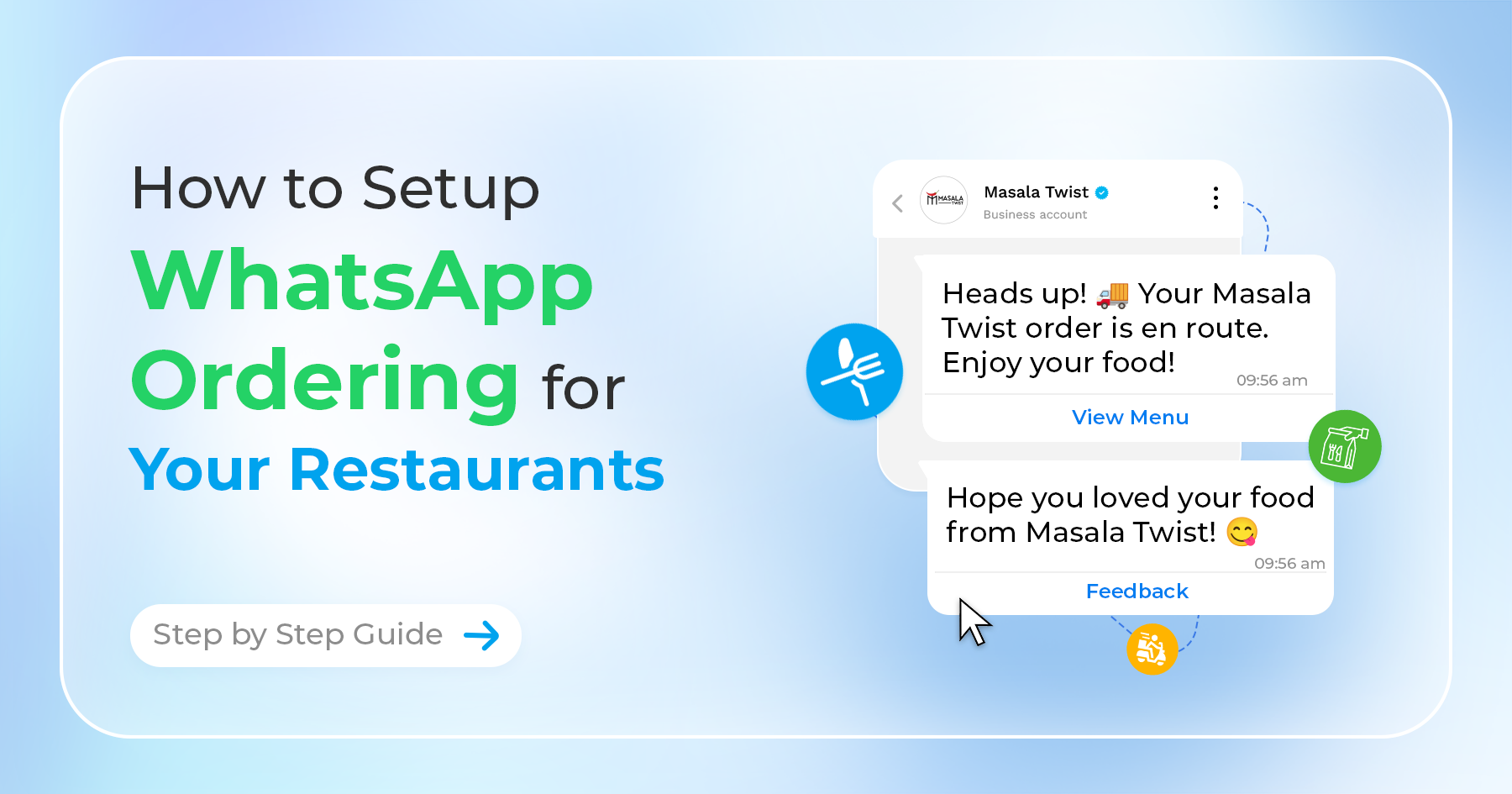
- Request Feedback After Every Order: Send a quick message after each order asking for feedback on their experience. For example, “We hope you enjoyed your meal! Please rate your experience from 1 to 5.”
- Run Short Surveys: Use WhatsApp to conduct brief surveys to understand customer preferences, test new menu items, or gauge satisfaction levels.
Step 7: Ensure Compliance with Data Privacy and Security
Managing customer data responsibly is crucial when using WhatsApp for orders.
- Follow Data Privacy Regulations: Make sure your practices comply with laws like GDPR or CCPA. Clearly inform customers how their data will be used and obtain consent for marketing messages.
- Reassure Customers About Security: Let your customers know that WhatsApp uses end-to-end encryption to keep their orders and personal information secure.
Conclusion
By setting up WhatsApp as an ordering platform, you can create a more efficient, personalized, and engaging customer experience. From setting up a WhatsApp Business profile and menu catalog to promoting the service and gathering feedback, these steps will help you leverage WhatsApp as a powerful tool for increasing orders and customer satisfaction. Start implementing these strategies today and watch your restaurant’s operations and customer loyalty grow!