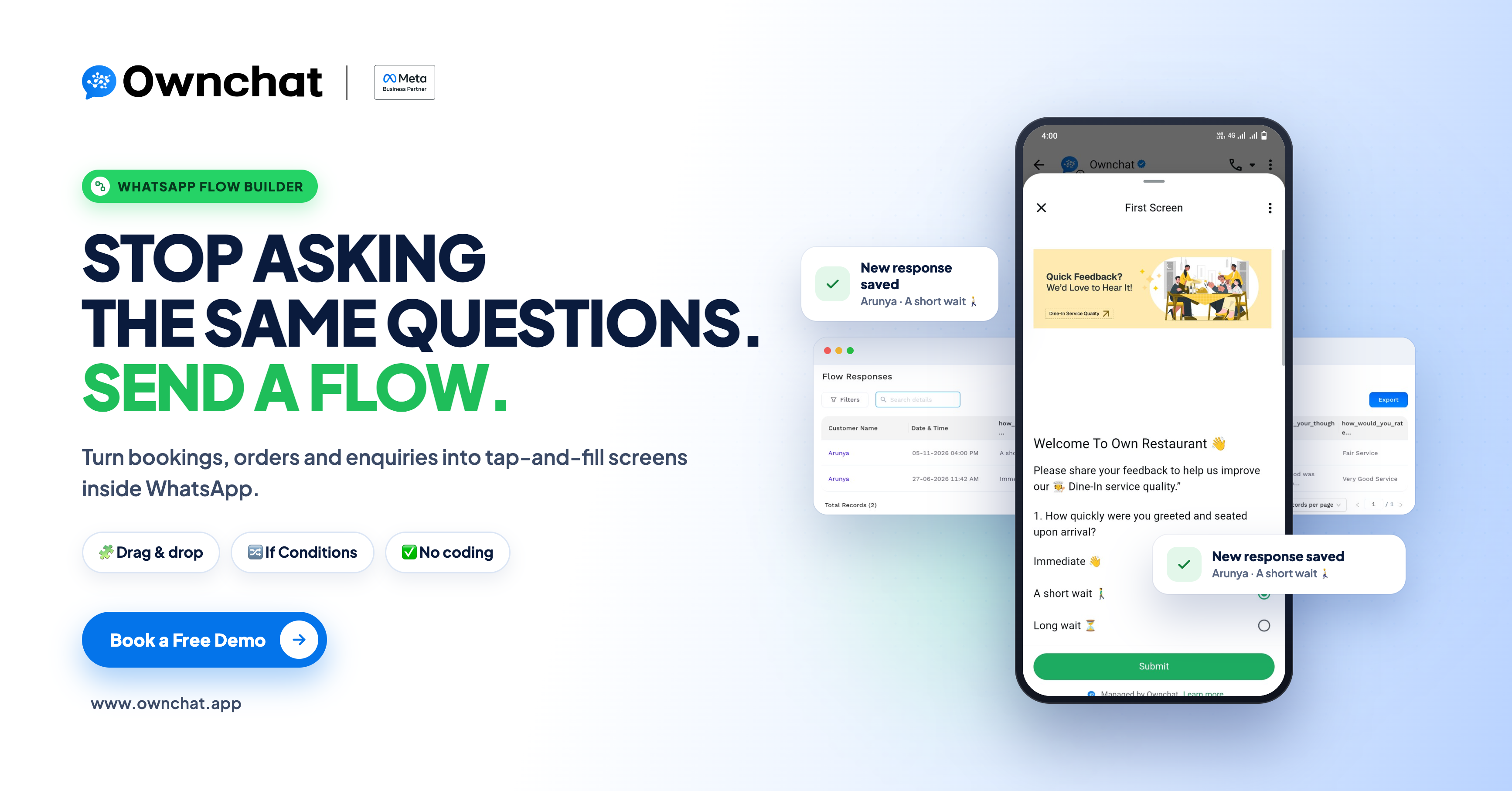
Quick answer: Ownchat Flow Builder lets you build multi-step forms and menus that open inside WhatsApp, with no coding. Customers tap and fill in fields instead of typing long messages, If Conditions show each customer only the screens that apply to them, and you receive clean, structured details for bookings, orders, enquiries and feedback.
Key takeaways
- Turn repeated WhatsApp questions into tap-and-fill screens.
- If Conditions send each customer down the right path based on their choices.
- Every flow follows one pattern: Welcome → Choose → Details → Confirmation.
- Below are ready-to-copy flows for 10 industries.
- You need Admin or Owner access and a connected WhatsApp number.
Customers want quick answers and simple steps. But collecting details on WhatsApp one message at a time is slow. Your team asks for names, numbers and requirements all day, then copies them somewhere else while leads wait.
Ownchat WhatsApp Flows fixes this by turning those questions into clean screens inside WhatsApp. This guide covers what Flow Builder is, ten industry use cases you can copy, and how to build your first flow.
What Is Ownchat Flow Builder?
Flow Builder is a visual, drag-and-drop builder inside Ownchat. You build screens from three kinds of components (text, input and selection), add a footer button, and use If Conditions to guide customers down different paths.
For example: if a customer selects "Catering", show the catering details screen; otherwise, show the standard booking screen.
You can preview each screen live on a mobile view, test it in WhatsApp, and publish it in one click. A flow can have several connected screens and can store what customers enter as variables. For advanced needs, the API Powered option connects a flow to external systems.
Flow Builder vs a Chatbot
A chatbot guides a conversation with messages and buttons. A flow opens structured screens and forms. They work well together: a chatbot can greet the customer and open a flow when it's time to collect details.
Why Normal WhatsApp Chats Fall Short
Free-form chat is great for conversation but weak when you need specific details in a set order:
- Incomplete details: customers skip information, so your team keeps following up.
- Repeated questions: agents type the same questions dozens of times a day.
- Lost leads: if no one is online, the customer waits or moves on.
- Scattered data: important details sit inside long chats instead of being organised.
- Inconsistent experience: every agent asks questions a little differently.
A flow gives every customer the same clear path, and If Conditions make that path fit each customer's answers.
Benefits of Flow Builder
| For your business | For your customers |
|---|---|
| Saves team time on routine detail collection | Less typing, since tapping is easier |
| Complete leads through required fields | Clear steps and a clear next action |
| Works around the clock, including nights and holidays | No irrelevant questions, thanks to If Conditions |
| No developer needed | Nothing new to learn, it's all inside WhatsApp |
| Same experience whoever is online | Screens designed for mobile |
| Test before publishing; track flows as Draft, Published or Disabled |
Use Cases by Industry: 10 Ready-to-Copy Flows
| Industry | Flow | You collect |
|---|---|---|
| Restaurants & cloud kitchens | Order type → date and guests → confirm | Dine-in/takeaway/catering, date, guest count |
| Grocery & supermarkets | Delivery or pickup → items → address or slot | Item list, address, pickup slot |
| Retail & D2C | Category → size, colour, quantity → contact | Product, variant, contact |
| Textile & fashion | Retail or wholesale → fabric → quantity and budget | Buyer type, fabric, quantity |
| Salons, spas & clinics | Service → date and time → contact | Service, slot, contact |
| Education & coaching | Course → student and parent details | Course, student, parent phone |
| Real estate | Buy, rent or invest → type, location, budget | Requirement, budget, contact time |
| Travel & tours | Destination → dates, travellers, budget | Destination, dates, group size |
| Service businesses | Issue type → description and location | Issue, location, contact |
| Any business: feedback | Rating → comments | Rating, comments |
1. Restaurants and Cloud Kitchens
Problem: Orders and table or party requests arrive as long, unclear messages.
Flow:
- Welcome with the day's special
- Choose Dine-in, Takeaway or Catering
- Date, time and number of guests or items
- Confirmation and next steps
If Condition: If the customer chooses Catering, show a screen for event date, guest count and menu preferences. Otherwise, show the standard booking screen.
Result: Fewer missed bookings and no back-and-forth to confirm basics.
Want full online ordering with payments and a kitchen order board? See Owncart, our ordering platform for restaurants.
2. Grocery and Supermarkets
Problem: Customers send grocery lists in free text, so items are missed and substitutions are unclear.
Flow:
- Choose delivery or store pickup
- Select categories (fruits, dairy, staples) and enter items
- Address or pickup slot
- Confirmation
If Condition: If the customer chooses Delivery, ask for an address. If they choose Pickup, ask for a pickup slot.
Result: Orders arrive in one consistent format for the packing team.
3. Retail and D2C Brands
Problem: Product enquiries need size, colour and quantity, which customers forget to share.
Flow:
- Choose a product category
- Select size, colour and quantity
- Name, phone and city
- Thank you
If Condition: Show size options only for categories that have sizes, such as clothing or footwear.
Result: Faster, more accurate order enquiries.
4. Textile and Fashion Stores
Problem: Buyers ask about fabric, quantity and delivery in scattered messages.
Flow:
- Choose Retail or Wholesale
- Select fabric type and category
- Quantity, budget range and city
- Confirmation
If Condition: If the buyer chooses Wholesale, ask for bulk quantity and business details. Otherwise, go straight to retail details.
Result: Your team can quickly tell a bulk buyer from a casual browser.
5. Salons, Spas and Clinics
Problem: Appointment requests turn into long "which time suits you?" threads.
Flow:
- Welcome
- Select service, doctor or department
- Preferred date and time
- Name, phone and confirmation
If Condition: Show the slot options that match the selected service, doctor or department.
Result: Less phone-tag and fewer scheduling errors. For clinics, collect only what you need and avoid sensitive medical details unless your privacy practices allow it.
6. Education and Coaching Institutes
Problem: Admission enquiries arrive without course or contact details.
Flow:
- Short intro to your courses
- Select course or class level
- Student name, parent phone and city
- Thank you with next steps
If Condition: Show the fee and batch details screen that matches the selected course.
Result: Qualified leads your counsellors can call straight away.
7. Real Estate
Problem: Buyers send vague messages like "need a flat."
Flow:
- Choose Buy, Rent or Invest
- Property type, location and budget range
- Name, phone and preferred contact time
- Confirmation
If Condition: If the customer chooses Rent, show monthly budget ranges. If they choose Buy, show purchase budget ranges.
Result: Better lead quality, so agents spend time only on serious buyers.
8. Travel and Tour Operators
Problem: Trip enquiries lack dates, group size and budget.
Flow:
- Select destination or package type
- Travel dates, number of travellers and budget
- Contact details
- Confirmation
If Condition: If the customer selects a domestic package, skip the passport and visa questions that international packages need.
Result: Quotes can be prepared without repeated questions.
9. Service Businesses (Repairs, Home Services, Agencies)
Problem: Support requests land with the wrong team.
Flow:
- Select issue type
- Describe the problem and location
- Contact details
- Ticket confirmation
If Condition: Route each issue type to its own follow-up questions, such as electrical, plumbing or billing.
Result: Requests reach the right team the first time.
10. Any Business: Feedback and Surveys
Problem: Feedback requests sent as plain messages get few replies.
Flow:
- Rate your experience
- What could we improve?
- Thank you
If Condition: If the rating is low, ask what went wrong. If it's high, ask for a review.
Result: More responses, because rating takes one tap.
Key Features Explained
- Multiple connected screens: link screens into a journey, such as Welcome → Choose a Service → Enter Details → Confirmation.
- Ready-made components: text for headings and body, input for typed information, and selection for choices.
- Drag-and-drop editing: add, edit, duplicate, delete or reorder components in a click.
- If Conditions: send customers to different screens based on their choices.
- Live mobile preview: see what customers will see while you build.
- Variables: store entries such as name, phone or email for use later in the journey.
- Test Flow: try the journey in WhatsApp before customers see it.
- Build Flow: save and publish to WhatsApp.
- API Powered option: connect a flow to external systems for dynamic data.
- Flow management: name, categorise and version each flow, and filter by Draft, Published or Disabled.
Understanding the Flow Builder Screen
| Area | What it does |
|---|---|
| Top tabs | Switch between Screens, Components and Variables |
| Left panel | Library of text, input and selection components to drag onto the screen |
| Middle preview | Live phone view of the screen you're editing, with a Live Preview toggle |
| Right panel | Components on the current screen: edit, duplicate, delete or reorder |
| Top-right actions | Test Flow, Build Flow and Add New Screen |

Good to know: if a screen uses a Rich Text component, only Rich Text and a Footer can be on that screen. Plan your layout before you start.
How to Build Your First Flow
- Check access. You need Admin or Owner access, permission to create and publish flows, and a connected WhatsApp number.
- Open Flow Builder. Go to Dashboard → Automation → Flow Builder.
- Create the flow. Click Create Flow, enter a Flow Name, choose a Category and Version, turn on API Powered only if you need an external system, and click Create.
- Build the first screen. Add a heading, a sub-heading, the input or selection components you need, and a footer with its action.
- Add screens and If Conditions. Use Add New Screen to extend the journey, and add If Conditions so different choices lead to different screens.
- Test. Click Test Flow and go through it in WhatsApp like a customer, trying each path and some incomplete answers.
- Publish. Click Build Flow. When you update the flow later, create a new version.
Frequently Asked Questions
What is a WhatsApp flow?
A multi-screen form or menu that opens inside WhatsApp, so customers can tap and fill in details instead of typing messages.
What is an If Condition in Flow Builder?
A rule that sends the customer to a different screen based on their choice. For example, a customer who selects Catering sees a catering details screen, while others see the standard booking screen.
Do I need coding skills to use Flow Builder?
No. You drag and drop components and preview the result. Coding only comes in if you choose API-powered flows.
Where do the details customers fill in go?
They're saved in Ownchat with the customer's conversation. You can also send them automatically to Google Sheets or your CRM through Ownchat integrations, so your team gets every response in one place.
Does sending a flow cost anything?
Flows are sent as normal WhatsApp messages, so standard WhatsApp charges apply. Replies inside the 24-hour customer service window are free, and flows sent with a template outside that window are charged per delivered message. See Ownchat pricing for details.
Can I test a flow before customers see it?
Yes. Test Flow lets you try it in WhatsApp first.
Who can create and publish flows?
Users with Admin or Owner access and the required permissions.
Is Flow Builder the same as a chatbot?
No. A chatbot guides a conversation with messages and buttons, while a flow opens structured screens and forms. They can work together.
Start With One Flow This Week
Flow Builder turns repetitive WhatsApp questions into quick, guided screens that adapt to each customer with If Conditions. Pick the one task your team repeats most, such as bookings, enquiries or orders, and build a short flow for it this week.
Want help building your first flow? Book a free 15-minute demo, and our team will help you set it up for your business.


