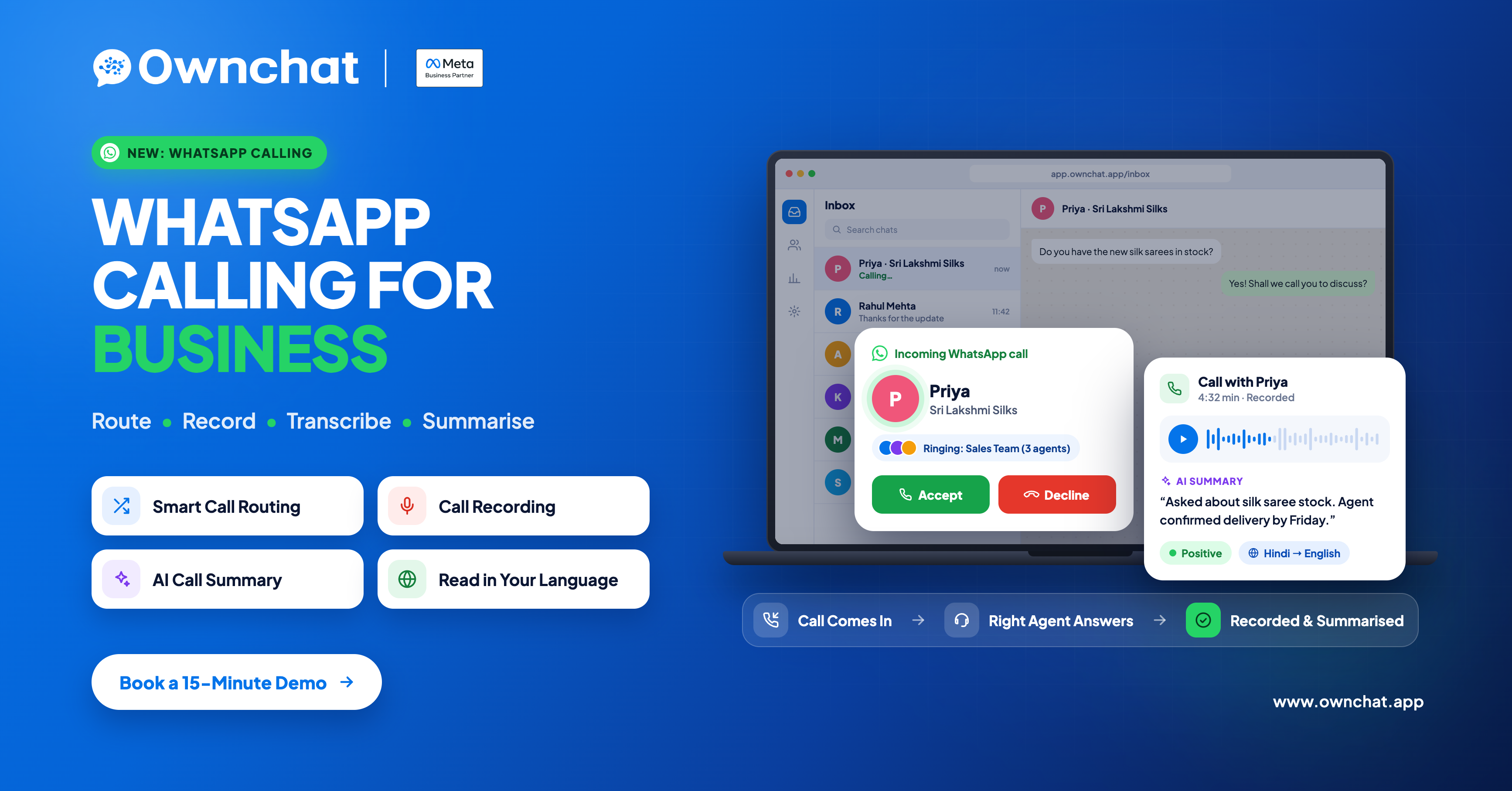
Quick answer: Ownchat WhatsApp Calling lets your team answer and make WhatsApp calls from the browser, inside the same inbox as your chats. Turn it on in Settings › Channel › WhatsApp › WhatsApp Calls, choose who the calls ring, and every call is recorded, turned into text, translated into your language and summarised by AI.
Key takeaways
- Calls ring your whole team, one team or chosen people, so a busy phone no longer means a missed customer.
- Customers who already chat with an agent reach that same agent first.
- Every call is recorded, transcribed and summarised, so anyone on the team knows what was promised.
- A Hindi call can be read in your own language.
- Calls and chats sit in one customer conversation.
Many Indian customers now call a business on WhatsApp instead of typing a long message. They call to confirm an order, ask a price, book an appointment or report a delivery problem. For most businesses, those calls are a blind spot:
- The call rings on one person's phone, and if they're busy, it's missed.
- Nobody else knows what was promised.
- The call may be in a language the rest of the team doesn't speak.
- You can't tell whether the customer left happy or frustrated.
Each of these costs you a sale, a repeat question or a lost customer. With Ownchat WhatsApp Calling, customer calls arrive in the same shared team inbox as your chats, so every call is answered, recorded and summarised. Here's how to set it up and use it.
Before You Start
- Your WhatsApp Business number is connected to Ownchat through the official WhatsApp Business API.
- Your team members are added in Ownchat.
- Calls are answered in the browser, so your team needs a computer with a headset or microphone. No extra phone or SIM is needed.
Using WhatsApp Business app with coexistence? [confirm: whether calling works on coexistence numbers, and how to switch to direct API onboarding]. Read more about WhatsApp Coexistence, or book a demo and our team will check your setup.
Step 1: Turn On Calls and Choose Who Answers
- Go to Settings (gear icon in the sidebar) › Channel › WhatsApp › WhatsApp Calls.
- Turn on WhatsApp Voice Calls.
- Choose who the calls ring:
| Option | Use it when |
|---|---|
| All Agents | Any available team member can take the call |
| Team | Only one department, such as Sales or Support, should take it |
| Users | Calls should go to specific people, such as a VIP customer's account manager |
- Turn on Ring Assigned Chat Agent First, so a customer who's already chatting with an agent reaches that same person.
- Test it by calling your business number from another phone.
For screenshots and videos of each setting, see the WhatsApp Voice Call setup guide in Ownchat Docs.”
If the person who answers can't help, they can transfer the call to an online teammate, and take it back if the teammate doesn't pick up.
Example: A customer calls at 11 AM about a delayed order, and your usual support person is already on a call. The call rings the rest of the team, another teammate answers, and the customer gets an answer instead of a ringing phone.
Business benefit: Fewer missed calls, and you no longer depend on one employee's phone.
Step 2: Set Working Hours
Turn on Sync with Working Hours to accept calls only during your business hours. Calls outside those hours are declined, and the customer gets an automatic WhatsApp message instead, such as: "We're closed now. Message us here and we'll reply when we open at 10 AM."
Business benefit: Your team isn't disturbed after hours, and customers still get a reply.
Step 3: Check the Recording and AI Summary
- After the call, open that customer's chat in Ownchat.
- Find the call entry and read the AI summary of the key topics discussed.
- Play the recording only when you need the exact words.
Tip: An AI summary is a quick guide, not a legal record. If a detail matters, such as an address, price or delivery date, check it against the recording.
Example: A customer calls to ask if a product will be restocked this week, and the agent says "by Friday." Two days later a different teammate gets a follow-up from the same customer, reads the summary and already knows what was promised.
Business benefit: Everyone knows what was agreed, and "you told me something different on the phone" is easy to settle.
Step 4: Read Any Call in Your Own Language
Ownchat turns each recorded call into a text transcript and can translate it into your language.
- Open the call in the customer's chat.
- Select [confirm button name] to see the transcript.
- Read the translated version in your language. [confirm: Tamil and other Indian languages supported]

Example: A Hindi-speaking agent finishes a refund call. Later, a Tamil-speaking manager opens the chat and reads the call in Tamil, without asking anyone to translate.
Business benefit: Any teammate can follow up whatever language the call was in, and managers can review calls in languages they don't speak.
Step 5: Use Call Sentiment to Follow Up Fast
Each AI summary shows the sentiment of the call, so you can spot unhappy customers quickly. Treat it as a signal, not a verdict:
- Negative sentiment: read the summary and message the customer on WhatsApp the same day.
- Issue not resolved: apologise, fix it and confirm on WhatsApp.
- Same issue in many calls: it may be a training gap or a process problem worth fixing.
Business benefit: You catch unhappy calls early, before they become bad reviews.
Step 6: Keep Chats and Calls in One Conversation
Customers don't think in channels. One may message in the morning and call in the evening to place the order. In Ownchat, both sit in the same chat, so the person taking the call can see earlier messages and photos, and nobody asks the customer to repeat themselves.
Your team can also call a customer back with one click from the chat. WhatsApp requires the customer's permission before a business can call them.

Daily Checklist for Managers
- Check yesterday's missed calls on the calls dashboard and call those customers back.
- Read the summaries of calls with negative sentiment.
- Follow up on every unresolved call on WhatsApp the same day.
- Review calls in languages your team lead doesn't speak.
Who Benefits Most?
| Business | How calls help |
|---|---|
| Sweet shops and bakeries | A festival call to change a delivery address is saved with a summary, so the promised address and time are clear |
| Restaurants and cafés | Calls after closing time get an automatic reply instead of ringing out |
| Textile and clothing stores | The owner can read a Hindi call in their own language |
| Jewellery stores | If the usual salesperson is busy, another teammate takes the call |
| Salons and spas | The customer's call rings the same receptionist they've been chatting with |
| Retail and e-commerce | Photos of a damaged product and the replacement call stay in one conversation |
The same setup suits grocery stores, clinics, repair shops, schools and support teams.
Tell Customers That Calls May Be Recorded
Add a short notice, for example in your WhatsApp welcome message: "Calls may be recorded for service quality." Follow the privacy and consent rules that apply to your business. [confirm wording with your legal team]
Frequently Asked Questions
Do customers need to install anything?
No. They call your business on WhatsApp as usual.
Does my team need a phone to answer calls?
No. Calls are answered in the browser inside Ownchat. A headset is recommended.
Can several people handle calls?
Yes. Calls can ring all agents, a team or chosen people, and can be transferred between teammates.
Can we call customers from Ownchat?
Yes. Your team can start a call from the customer's chat, once the customer has given permission to be called.
Can I review calls later?
Yes. Each call is saved in the chat with its recording, transcript and AI summary.
What happens to calls outside business hours?
With Sync with Working Hours on, they're declined and the customer gets an automatic WhatsApp message.
What does WhatsApp Calling cost?
Calls from your customers are free. For calls you place, Meta charges per minute, and the rate falls as your monthly minutes grow. Ownchat plans start from ₹2,160 per month. See Ownchat pricing. [confirm: is calling included in all plans?]
How long are recordings stored?
Recordings are stored encrypted in the cloud, and you can download them. [confirm retention period]
Get Started
Customers will keep calling you on WhatsApp. Make sure every call is answered, remembered and followed up.