Quick answer: When your WhatsApp chatbot stops replying or sends the wrong message, don't rebuild it. Open the workflow's run history, find the first step that failed or behaved unexpectedly, and check what went into that step and what came out. Most problems come from a few causes: the trigger didn't fire, a condition didn't match, customer details were missing, an integration failed, or WhatsApp's own rules blocked the message.
Key takeaways
- Always start with the first step that went wrong, not the last one.
- Most "bot not replying" problems have simple causes you can fix without a developer.
- WhatsApp rules (the 24-hour window, approved templates, opt-outs) cause many failed messages.
- Test the fix with real-life scenarios before customers see it.
- Keep a short note of every fix so your team spots the same problem faster next time.
What Is Chatbot Workflow Debugging?
A chatbot workflow is a chain of steps: something starts it (a trigger), it checks a few things (conditions), and then it does something (actions), like sending a WhatsApp message.
Debugging simply means finding which step in that chain went wrong and fixing it.
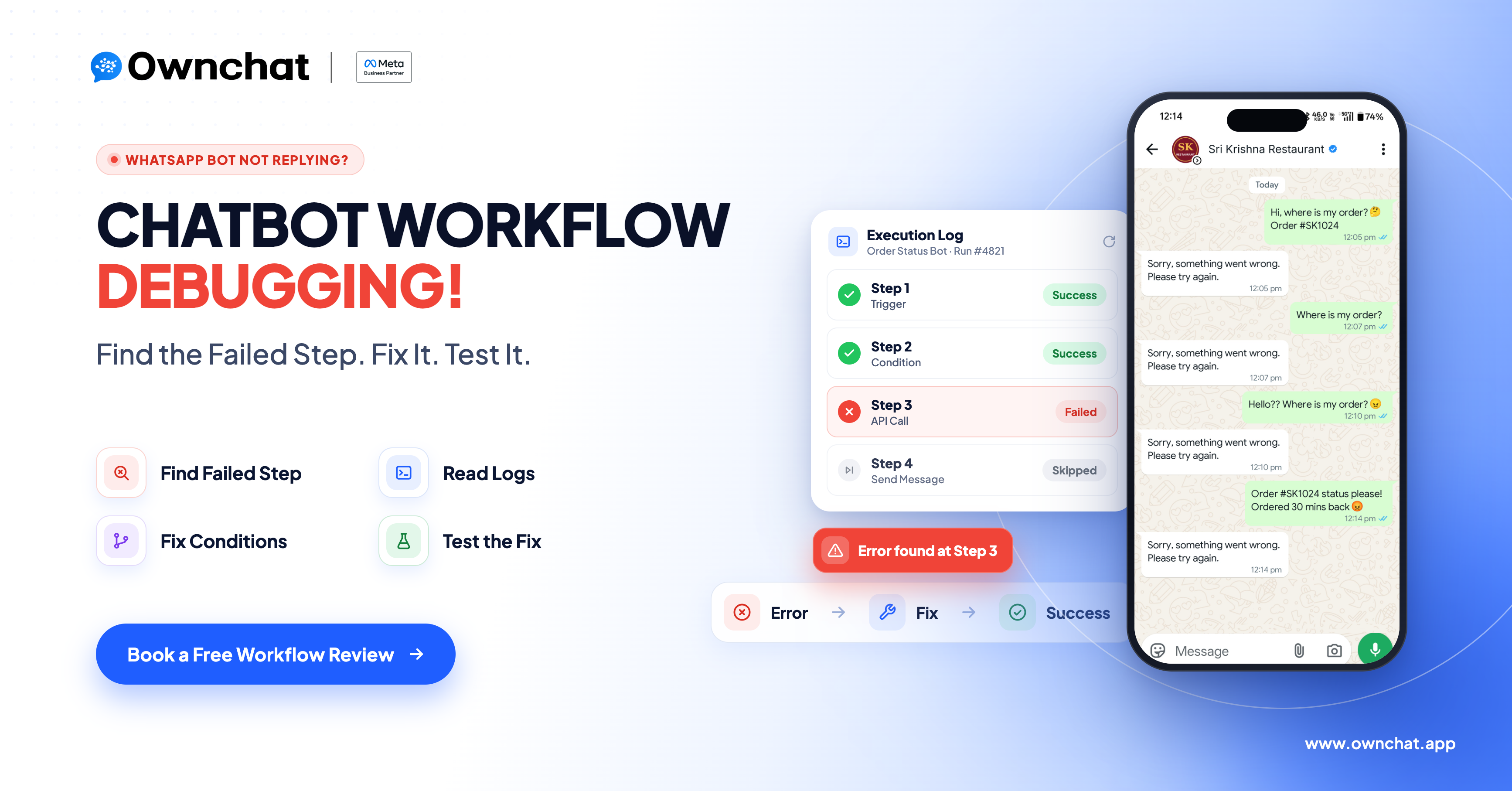
Example: A customer messages "Where is my order?" but your bot replies "Sorry, something went wrong." The workflow started fine, but somewhere in the middle a step failed. Maybe the order number was missing, or the system that holds your orders didn't respond. Finding that one step is the whole job.
Why Is My WhatsApp Chatbot Not Replying? 7 Common Reasons
Check these first. They cover most problems businesses run into.
| Problem | Likely reason | What to do |
|---|---|---|
| Bot doesn't reply at all | The workflow isn't published or turned on, or the trigger keyword doesn't match what the customer typed | Check the workflow is live, and that the trigger matches real customer messages |
| Bot replied before, but not now | The 24-hour customer service window has closed | Outside 24 hours, you can only send an approved template message |
| Message fails to send | The template was rejected or paused, or the customer opted out or blocked you | Check the template status and the customer's opt-in |
| Message goes to some customers, not others | Phone numbers saved without the country code (+91) or in the wrong format | Save every number as +91XXXXXXXXXX |
| Bot gives the wrong reply | A condition checked the wrong value, such as "delivered" vs "Delivered" | Compare the actual value with the value in your condition |
| Bot shows the wrong details | The message uses the wrong field, such as the customer's name where the order status should be | Check which field each message variable is linked to |
| Order or bill message never arrives | Shopify, Petpooja or another connected app didn't send the event, or the connection needs re-authorising | Reconnect the app and place a test order |
If you're sending large campaigns and messages fail with error 131049, read our guide on how to send bulk WhatsApp messages without getting banned.
How to Find the Failed Step in Ownchat
Follow the customer's message through the workflow, one step at a time.
- Open the workflow in Ownchat that should have handled the message.
- Find the run that matches the customer and the time of the problem.
- Go through the steps in order, from the trigger to the last step that ran.
- Stop at the first step that failed or gave a result you didn't expect. That's your problem step.
- Check what went in and what came out of that step, and read the error message if there is one.

No run at all? Then the workflow never started. Check that it's published, that the trigger is correct, and that the connected app or WhatsApp number is working.
Run stopped halfway? Fix only the first failed step. Changing several steps at once makes it harder to know what actually fixed the problem.
How to Read Workflow Logs
Each step in a run shows a status. Here's what they mean:
| Status | What it means | What to do |
|---|---|---|
| ✅ Success | The step ran as expected | Move to the next step |
| ❌ Failed | The step hit an error | Read the error message and check the step's input |
| ⏭ Skipped | A condition sent the customer down another path, or an earlier step failed | Check the condition or the earlier failed step |
| ⏳ Slow or timed out | A connected app took too long to respond | Check the app is online, or add a fallback reply |
Example: A log shows the "Get order details" step failed with "order not found." That usually means the customer typed the order number differently (with spaces or a # sign) or the order belongs to another store. Fix how the order number is collected, then test again.

When you share logs or screenshots with your team or our support, hide customer phone numbers and any passwords or keys.
Fix Wrong Replies: Check Conditions and Customer Details
Sometimes every step shows "Success," but the customer still gets the wrong reply. The workflow did exactly what it was told. The instructions were just slightly off.
Conditions That Don't Match
Say your condition says: if order status is "delivered," send the feedback message.
But your order system sends "Delivered" with a capital D, or sends nothing at all. The condition doesn't match, so the customer goes down the wrong path.
How to fix it:
- Look at the actual value that reached the condition in the log.
- Match your condition to that exact value, or use a "contains" check instead of an exact match.
- Add a fallback path for empty or unexpected values, so customers never hit a dead end.
Details in the Wrong Place
If a message says "Your order status is Priya," the message is linked to the customer's name field instead of the order status field. Nothing failed, so no error shows. Open the message step and check which field each variable is linked to.
Fix Integration Errors (Shopify, Petpooja, Google Sheets)
When a workflow depends on another app, the problem is often in the connection, not the chatbot.
- Is the app still connected? Passwords and permissions can expire. Reconnect it if needed.
- Did the app send the event? Place a test order in Shopify or generate a test bill in Petpooja and see if the workflow starts.
- Does the sheet still match? If someone renamed a column in a Google Sheet, the workflow can't find the data.
- Is the phone number valid? A bill or order without a proper phone number can't trigger a WhatsApp message.
Don't keep re-running a failed step that creates something, like an order or a sheet row. Check whether it already worked first, or you'll end up with duplicates.
After the Fix: Test Before Customers See It
A fix isn't done until you've tested it.
- Re-run the exact situation that failed.
- Check the customer gets the right message, in the right order.
- Try nearby cases too: a missing value, a different spelling, a second order.
- Look at the new log to confirm every step shows the expected status.
- Make sure the parts that were already working still work.
- Write a one-line note: what broke, why, and what you changed.
Best Practices to Avoid Workflow Problems
- Test with real customer messages, not just the perfect example you had in mind.
- Always add a fallback reply, so customers get a helpful message instead of silence.
- Save phone numbers in one format (+91XXXXXXXXXX) everywhere.
- Keep template messages approved for anything sent outside the 24-hour window.
- Change one step at a time when fixing a problem.
- Hand over to your team when the bot can't help, instead of looping the customer. Our guide to the WhatsApp AI Agent explains how to set up a human handover.
- Review failed runs every week so small problems don't become big ones.
For Developers: API and Data Checks
If a workflow calls your own API through a webhook, check these when a step fails:
- The URL and method are correct, and the request has the right authentication.
- Field names and data types match what the API expects.
- The response returns the field your next step reads. For example, if the reply should show
order.statusbut the step readscustomer.name, the customer sees their name instead of the status. - The workflow handles errors, timeouts and empty responses with a fallback.
- Retries are limited and won't repeat an action that already succeeded.
How Ownchat Helps
Ownchat Workflow lets you build WhatsApp and Instagram automations with triggers, conditions and actions, and includes error handling, retries and detailed logs so you can see what happened at every step. Combined with the no-code WhatsApp chatbot, you can find a failed step, fix it and test it without rebuilding your flow.
Frequently Asked Questions
Why is my WhatsApp chatbot not replying?
The most common reasons are: the workflow isn't live, the trigger doesn't match the customer's message, the 24-hour window has closed, the template was rejected, or the customer opted out.
What is chatbot workflow debugging?
It's finding the step in your chatbot's workflow that failed or behaved unexpectedly, and fixing it without rebuilding the whole flow.
Why did my message fail outside the 24-hour window?
WhatsApp only allows free-form replies within 24 hours of the customer's last message. After that, you need an approved template message.
Why does my bot send the wrong reply even though nothing failed?
Usually a condition is checking a value that doesn't exactly match, or a message is linked to the wrong field. Check the actual values in the workflow log.
Do I need a developer to debug my chatbot?
Not for most problems. Triggers, conditions, templates and phone number formats can be checked by your team. You may need a developer only for custom API connections.
How do I stop the same problem from happening again?
Test with real customer messages, add fallback replies, keep phone numbers in one format, and note down every fix so your team recognises the problem next time.
Conclusion
When your chatbot misbehaves, you rarely need to start over. Find the first step that went wrong, check what went in and what came out, fix that one step, and test it with real scenarios.
Most problems come from a short list: a trigger that didn't fire, a condition that didn't match, a closed 24-hour window, a rejected template or a broken app connection. Once you know where to look, most fixes take minutes.
Need help with a workflow that isn't working? Book a free 15-minute review, and our team will help you find and fix the problem.